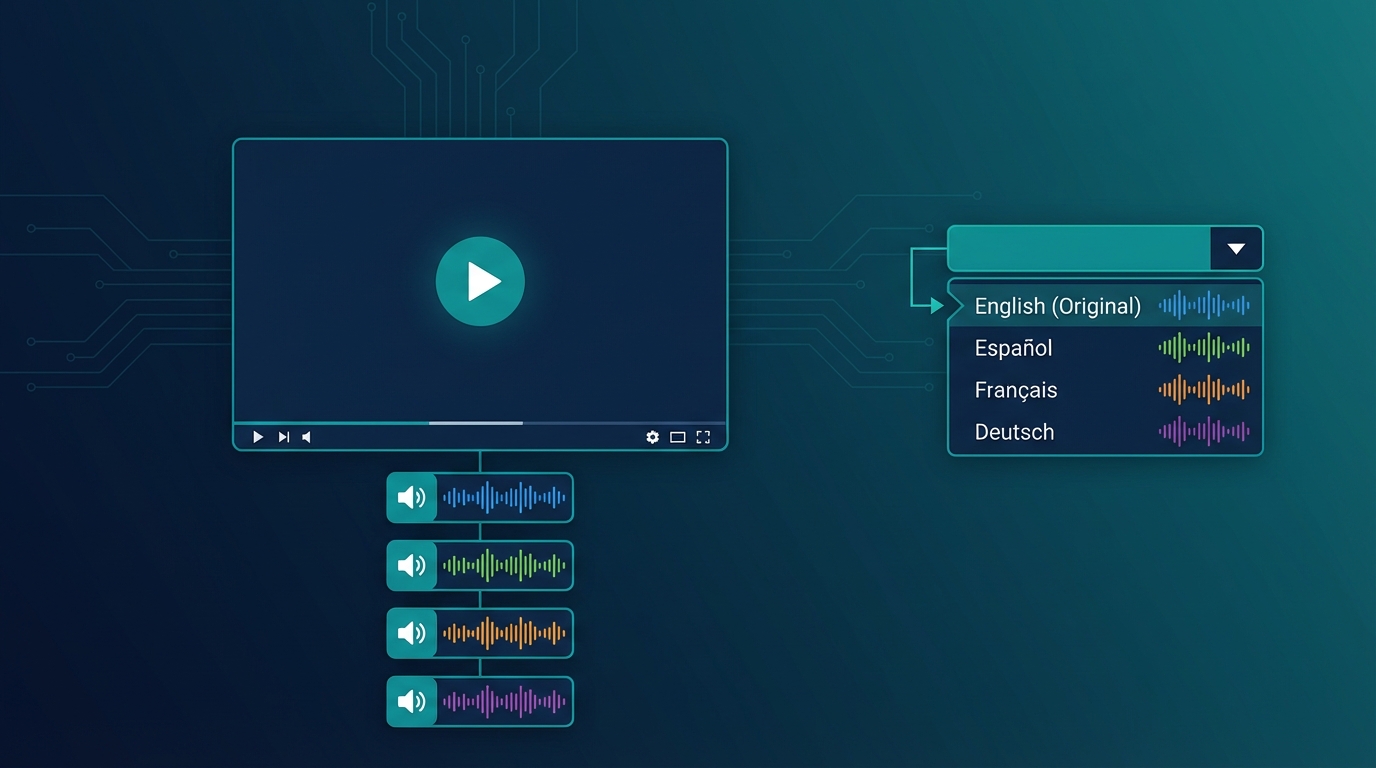

YouTube has introduced a feature that many creators still don’t know about or fully utilize: Multi-Audio. This feature allows viewers to choose the audio language directly from the player, without having to search for secondary channels or alternative versions of the video.
In this guide, I’ll show you exactly how it works and how to use it to expand your global audience.
Info
Important: YouTube’s Multi-Audio lets you upload up to 6 audio tracks in different languages on a single video. Viewers can switch languages with one click directly from the player.
🔊 What Is YouTube Multi-Audio
The Multi-Audio feature (also called “Audio Track” or “Multiple Audio Tracks”) allows you to upload alternative audio versions of the same video. Viewers can select their preferred language by clicking the settings icon in the player.
How it appears to viewers:
- Click the gear icon ⚙️
- Select “Audio track”
- Choose from available languages
- Audio changes instantly
The video stays the same, but the voice changes language. It’s like having a remote control for dubbing.
💡 Multi-Audio vs Separate Channels: Pros and Cons
Before implementing Multi-Audio, it’s important to understand when to use it versus the separate channels strategy (MrBeast style).
Multi-Audio Advantages
✅ Single video to manage: Unified metrics, centralized comments, less maintenance
✅ No additional channels: You don’t have to build separate audiences from scratch
✅ Smooth user experience: International viewers find your video and choose the language
✅ Algorithm boost: YouTube tends to promote Multi-Audio videos in corresponding markets
✅ Ideal for evergreen content: Tutorials, how-tos, reviews that don’t require frequent updates
Multi-Audio Disadvantages
❌ Less SEO control: Single title/description (you can only translate in metadata)
❌ Aggregated statistics: Hard to understand which language performs better
❌ Mixed community: Comments in all languages in the same place
❌ Single thumbnail: You can’t customize for each market
Tip
Pro Tip: use Multi-Audio for tutorial/educational content and separate channels for entertainment/personality-driven content where localized community matters more.
Your next video could speak 29 languages
While you're reading this, thousands of people are searching for content like yours — in a language you don't publish in.
5 free minutes · No credit card needed
📝 Tutorial: Adding Multi-Audio to Your Videos
Requirements
- Verified channel
- At least 1,000 subscribers
- No active strikes
- Separate audio file (audio track only, not video)
Step 1: Prepare the Audio Tracks
For each language, you need an audio file:
- Format: AAC, MP3, WAV
- Exact same duration as original video
- Dubbed voice only (original music stays)
How to get the tracks:
- Dub the video with NovaDub
- Download the complete version (video + dubbed audio)
- Extract only the audio with a tool like FFmpeg:
ffmpeg -i dubbed_video.mp4 -vn -acodec copy audio_language.aacOr NovaDub can export the separate audio track directly.
Step 2: Access YouTube Studio
- Go to studio.youtube.com
- Select the video to add tracks to
- Click “Subtitles” in the side menu
- Look for the “Audio tracks” section
Step 3: Upload Audio Tracks
- Click “Add audio track”
- Select the language
- Upload the audio file
- Give the track a title (e.g., “Español - AI Dub”)
- Wait for processing (may take a few minutes)
- Repeat for each language
Step 4: Verify and Publish
- Use preview to verify synchronization
- Check that audio is aligned with video
- Save changes
- Tracks become active immediately
Warning
Warning: synchronization is critical. If dubbed audio has a different duration by even a few seconds, it will be misaligned. Tools like NovaDub automatically handle timing.
🎯 Best Practices for Multi-Audio
Optimize Metadata
YouTube allows you to add translated titles and descriptions:
- In YouTube Studio, go to “Details”
- Click “Add language”
- Enter translated title and description
- Repeat for each language
This improves discoverability: when someone searches in Spanish, they can find your video with a Spanish title even if the original is English.
Promote the Feature
Many viewers don’t know they can change language. Tell them explicitly:
In the video: “This video is available in Spanish - click settings to change language”
In description: Add a note about available languages
In comments: Pin a comment explaining how to change language
Monitor Performance
Even though statistics are aggregated, you can deduce some information:
- Geolocation: YouTube Analytics shows where views come from
- Retention by country: See if certain markets have different retention
- Subscriber growth: Monitor which countries new subscribers come from
🔄 Optimal Workflow with NovaDub
Here’s the most efficient process for adding Multi-Audio to your videos:
-
Publish the original video on your channel
-
Upload the same video to NovaDub and select target languages
-
Download the dubbed versions (complete videos)
-
Extract audio tracks from each version
-
Upload them as Multi-Audio on YouTube Studio
Total time: about 30-45 minutes for 3 languages (of which 20-25 waiting for processing)
Cost example: 10-minute video × 3 languages = ~$50
Note
Note: if you use NovaDub subscription, cost drops significantly. With Creator plan (€49/month for 50 minutes) you can handle about 4-5 ten-minute videos per month in 3 languages.
📊 When to Use Multi-Audio vs Separate Channels
| Situation | Better Choice |
|---|---|
| Tutorial/educational channel | Multi-Audio |
| Entertainment/personality channel | Separate channels |
| Under 10K subscribers | Multi-Audio (build main first) |
| Over 100K subscribers | Consider separate channels |
| Evergreen content | Multi-Audio |
| Trending/newsjacking content | Separate channels (more timing control) |
| Limited budget | Multi-Audio (less overhead) |
| Dedicated team | Separate channels (maximum control) |
🚀 Hybrid Strategy
Many successful creators use both approaches:
Multi-Audio for:
- Pillar/cornerstone videos
- In-depth tutorials
- High-value evergreen content
Separate channels for:
- Daily/weekly content
- Trend-sensitive videos
- Priority markets (e.g., only Spanish and Portuguese as separate channels)
This hybrid strategy allows maximizing reach without multiplying workload.
✅ Conclusion
YouTube’s Multi-Audio is a powerful but underutilized tool. It allows you to reach global audiences without the complexity of managing multiple channels.
To start today:
- Choose one of your best videos
- Dub it in 2-3 languages with NovaDub
- Extract the audio tracks
- Upload them as Multi-Audio
In under an hour, your video will be accessible to millions more people.
Ready to make your videos multilingual? Try NovaDub free with 5 minutes included to test quality.
Have you used YouTube Multi-Audio? Tell us your experience in the comments!
Creators worldwide use NovaDub
"NovaDub revolutionized my channel. Now I reach audiences in 5 different languages with the same voice quality."
"The AI dubbing quality is incredible. My international followers can't believe it's automated!"
"We reduced localization costs by 80% while maintaining professional quality."
"Our courses now reach students worldwide. The audio quality is so natural it sounds like human dubbing."